Print Checks
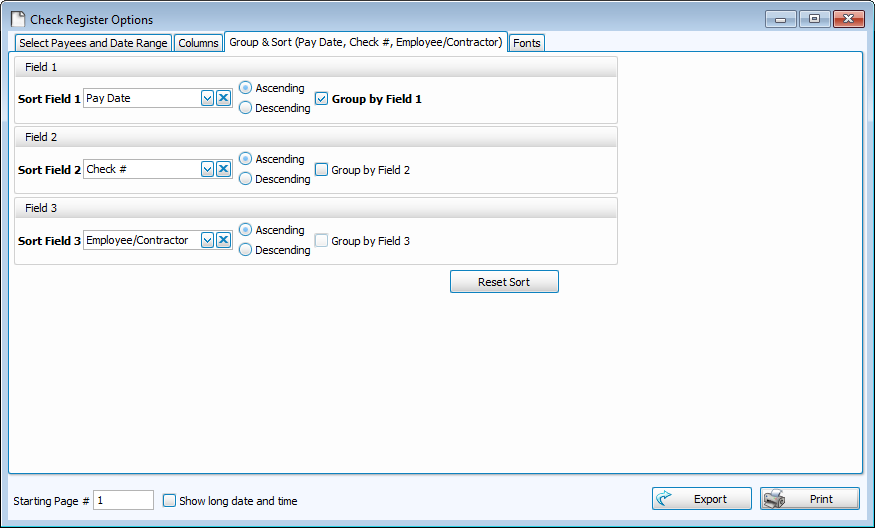
Print Checks allows you to print a first run of a checks from a calculated payroll, reprint checks and view Check Register
Access Print Checks
To access from the Button Bar, go to Payroll > Print Checks

Print First Run Checks
-
Select Date
-
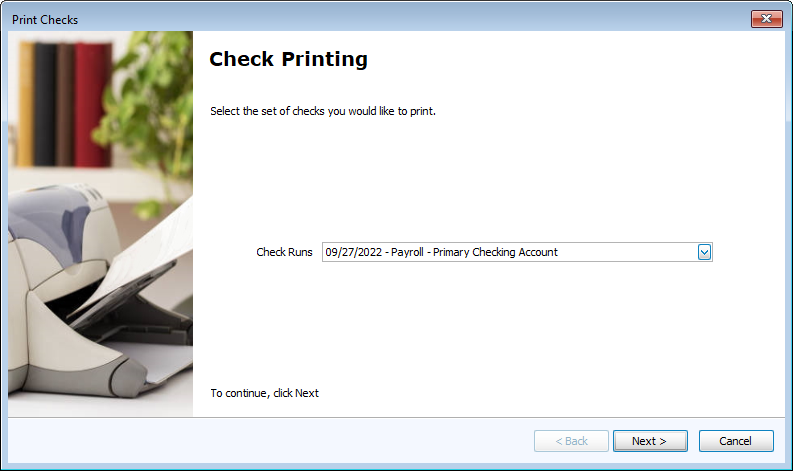
If you have multiple check runs that have not been printed, select the date you want to print.
-
If there is only one check run to be printed, you'll open to the Assign Check Numbers Screen.
-
-
Assign Check Numbers
-
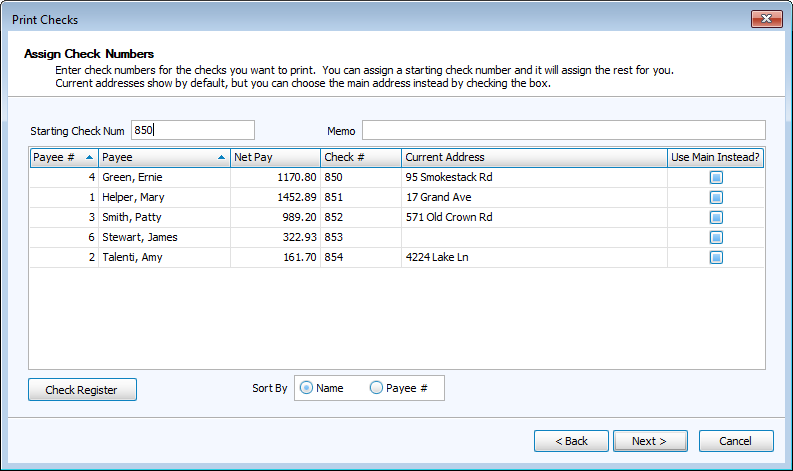
Enter a starting check number at the top. The remaining check numbers will fill in sequentially.
-
Optional: Enter a note on the memo field to appear on all checks.
-
-
Check Layout and Printing
-
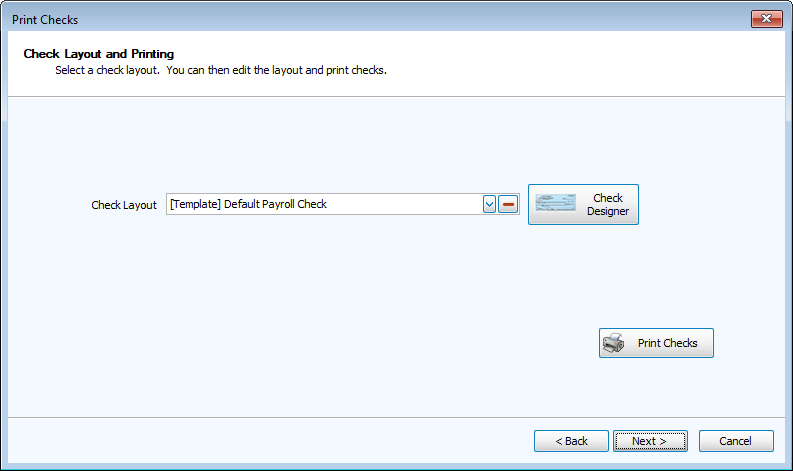
Use the default or select a saved layout from the Check Layout drop-down.
-
 is a tool to create custom check layouts.
 -
Click
 to review a print preview and to send them to your printer.
-
-
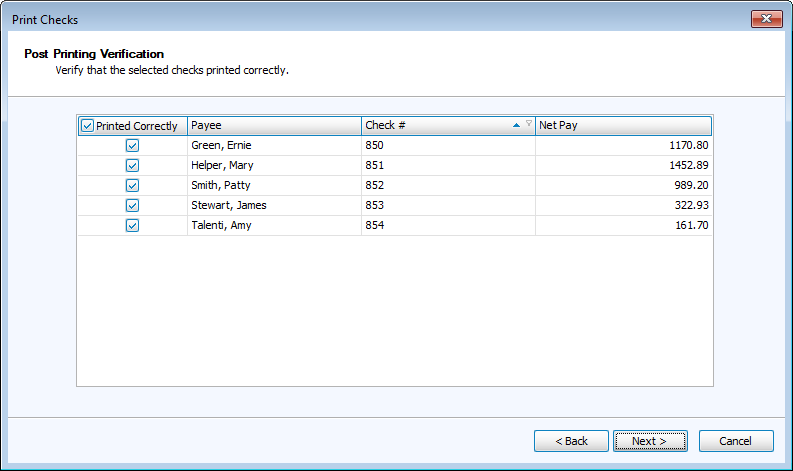
Post Printing Verification
-
If any checks did not print correctly, deselect the check mark on the left.
-
-
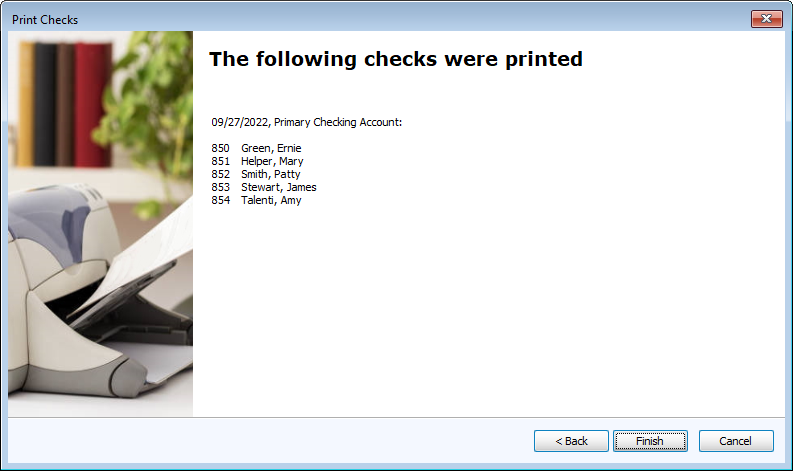
Summary
-
Click
 to exit.
-
Reprint Check or EFT Stubs
-
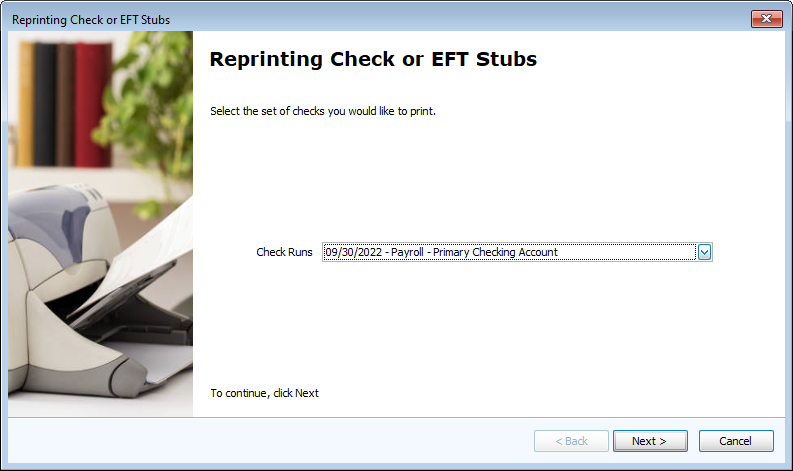
Select Pay Date.
-
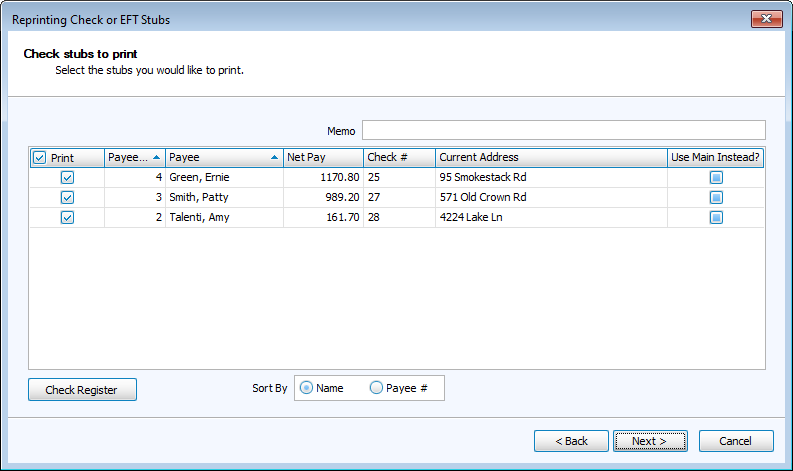
Select Checks to Reprint.
-
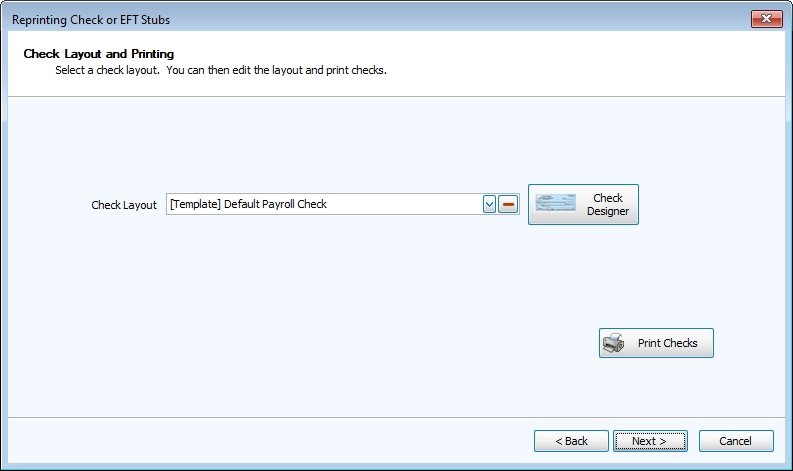
Check Layout and Printing.
-
Click Finish.
 Check Register
-
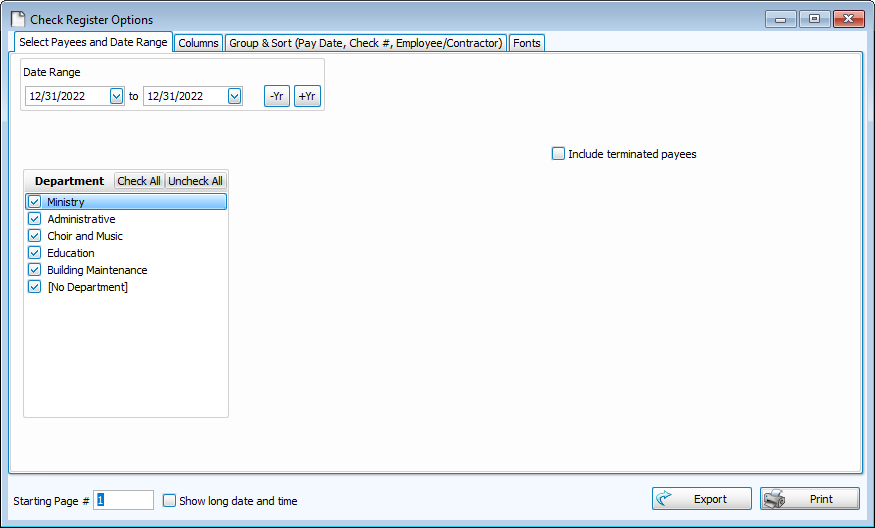
Select Payees and Date Range.
-
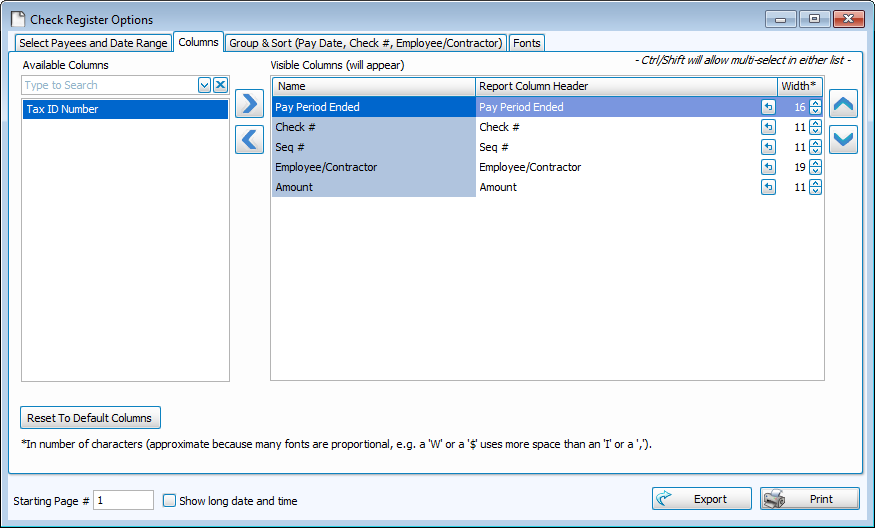
Select Columns.
-
Choose Group & Sort Options.